How to import GLB files into Unity (glTFast, step by step)
Unity is one of the most popular game engines, but it still does not open .glb files out of the box. The good news: Unity maintains its own free glTF importer, glTFast, and once it is installed GLB files behave like any other model in your project. This guide walks through installation, importing, materials, animations and the few gotchas that trip people up. Every step works with the free models on our Unity collection.
1. Install glTFast
- Open your project and go to Window → Package Manager.
- Click the + button in the top-left corner and choose Add package by name…
- Type
com.unity.cloud.gltfastand press Add. Unity downloads the package and compiles it.
glTFast works with Unity 2020.3 LTS and newer, including Unity 6, and supports the Built-in render pipeline, URP and HDRP. If you prefer the Khronos Group’s importer, UnityGLTF is an alternative you can add with Add package from git URL using https://github.com/KhronosGroup/UnityGLTF.git. Use one importer at a time — two importers fighting over the same .glb extension causes confusing errors.
2. Import the GLB
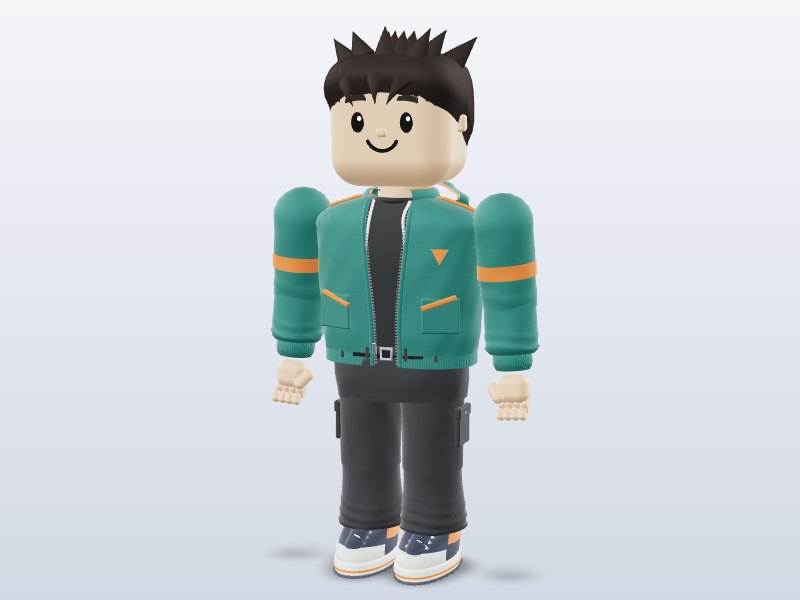
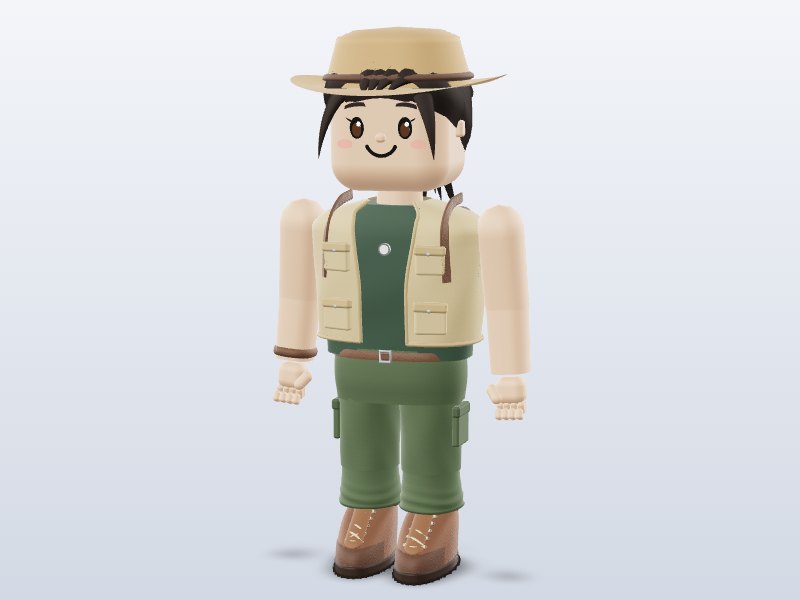
- Download a model, for example the Brojek Blocky Hero.
- Drag the .glb file from your file explorer into the Assets folder in the Project window.
- Unity imports it as a model asset with child meshes, materials and textures. Drag it into the Scene or Hierarchy to place it.
glTF uses meters and a Y-up coordinate system, the same as Unity, so a character should arrive at roughly human size and facing the right way. If something looks rotated by 180°, rotate the parent object rather than editing the mesh.
3. Check the materials
glTFast creates materials using its own shaders that match glTF’s metallic-roughness PBR model. They should look very close to the preview on our site. If you see bright pink materials, the shader for your render pipeline is missing: update glTFast to the latest version, make sure the right pipeline asset is assigned in Project Settings → Graphics, and re-import the file (right-click → Reimport). To edit a material, select the imported asset and extract its materials, or create your own material and assign the extracted textures.
4. Use the animations
Our rigged characters contain nine clips — Idle, Walk, Run, Jump, Wave, Dance, Dance2, Celebrate and Kick. Select the imported .glb and look at its import settings in the Inspector. glTFast offers an animation method setting: Legacy creates clips for the old Animation component, while Mecanim creates clips you can drop into an Animator Controller. Choose Mecanim, click Apply, then:
- Create an Animator Controller (Assets → Create → Animator Controller).
- Open it and drag the Idle and Walk clips in from the imported asset.
- Add an Animator component to your character and assign the controller.
- Create a float parameter
Speedand transitions Idle ↔ Walk based on it.
using UnityEngine;

public class SimpleMove : MonoBehaviour {
    public float speed = 3f;
    Animator anim;
    void Start() { anim = GetComponentInChildren<Animator>(); }
    void Update() {
        var dir = new Vector3(Input.GetAxis("Horizontal"), 0, Input.GetAxis("Vertical"));
        transform.position += dir * speed * Time.deltaTime;
        if (dir.sqrMagnitude > 0.01f) transform.forward = dir;
        anim.SetFloat("Speed", dir.magnitude);
    }
}
Make sure Idle, Walk and Run have Loop Time enabled if your version of the importer exposes it; otherwise loop them in the Animator state settings.
5. Humanoid retargeting? Convert to FBX
Unity’s Humanoid avatar system (used to share animations between different characters) is built around FBX. glTF imports give you a Generic rig, which is perfect for playing the clips that come with the model but cannot be retargeted. If you need Humanoid, open the GLB in Blender (see how to open GLB in Blender), export FBX with “Apply Transform” and “Bake Animation” enabled, then set the Rig type to Humanoid in Unity.
6. Performance tips for mobile and VR
- Use the low-poly game version when a model offers one — see low-poly models.
- Mark static props as Static for batching and baked lighting.
- Files marked “Draco compressed” need Unity’s Draco package (
com.unity.cloud.draco) installed alongside glTFast. - For Meta Quest, keep texture sizes modest and test on the device early — see VR-ready models.
Troubleshooting
- Nothing happens when I drop a .glb: glTFast is not installed or failed to compile; check the Console.
- Character is tiny or huge: check the parent object’s scale; glTF is in meters.
- Animations don’t play: confirm the animation method is Mecanim and that the Animator has a controller.
That is all it takes. Grab a free animated character, a few props and toy weapons, and you have a playable prototype in an afternoon.
Download 1 model free with your Google account. Want unlimited? Pay just US$1 — once, lifetime, not a subscription. Every new model we add is included forever.