How to use GLB models in Roblox Studio
Roblox Studio can bring in custom meshes through its 3D Importer, which turns your files into MeshParts with textures you can use anywhere in your experience. This guide covers the file formats, the import steps, the limits you need to respect and how to convert a GLB if your Studio version won’t take it. Brojek GLB is not affiliated with Roblox Corporation; the models here are original assets you can use in your own experiences.
Which formats does Roblox Studio accept?
For years the 3D Importer has accepted .fbx and .obj. Recent versions of Roblox Studio’s 3D Importer also accept .gltf and .glb. Because Roblox updates Studio often, the safest rule is: try the GLB first; if your Studio doesn’t list it in the file picker, export FBX or OBJ from the Character Creator or Blender (steps below). FBX keeps rigs and animations; OBJ is geometry and materials only.
Step 1: pick a Roblox-friendly model
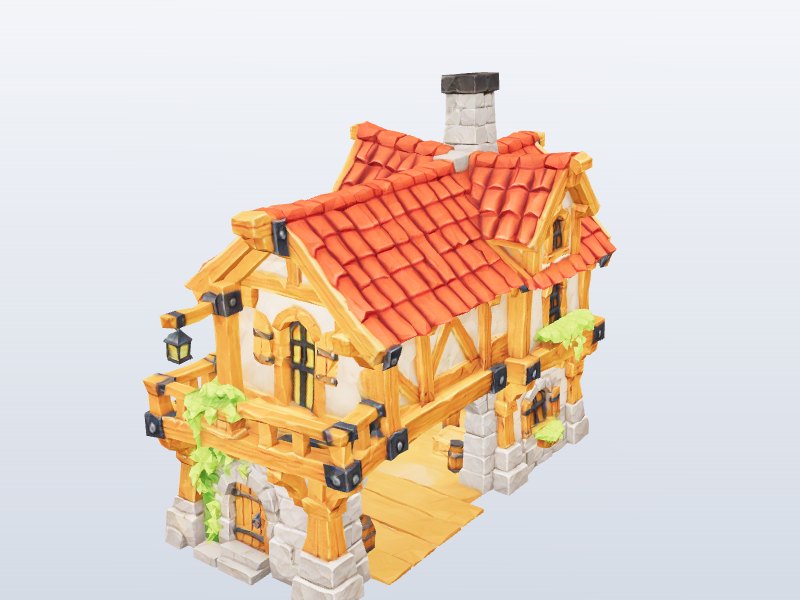
Roblox limits how many triangles a single mesh can have (the limit has been around 20,000 triangles per mesh — check the Creator Hub documentation for the current number). Big, detailed models will be rejected or need splitting, so start with the low-poly game version when a model offers one. Good first picks are a wooden crate, a barrel, a cartoon cottage or a palm tree. The Roblox Studio collection lists low-poly models first.
Step 2: import with the 3D Importer
- Open your place in Roblox Studio and make sure you are signed in (imported assets are uploaded to your account).
- Open the importer: File → Import 3D, or the Import 3D button on the Home or Avatar tab.
- Select your .glb (or .fbx/.obj). Studio opens a preview window with the model and an import settings panel.
- Check the warnings list. Common ones are “too many triangles” and texture notices.
- Click Import. The model appears in the Workspace (or Toolbox → Inventory, depending on settings), and the textures are uploaded with it.
Step 3: scale, anchor and collisions
Roblox measures in studs, while glTF is in meters. The importer has a scale/units setting; if a model arrives at the wrong size, re-import with a different unit or use the Scale tool. After placing it:
- Set Anchored = true on static props so they don’t fall or roll.
- For buildings players walk through, set CollisionFidelity to PreciseConvexDecomposition; for small props, Box or Hull is cheaper.
- Group pieces into a Model and set a PrimaryPart if you will move them by script.
Step 4: rigged characters
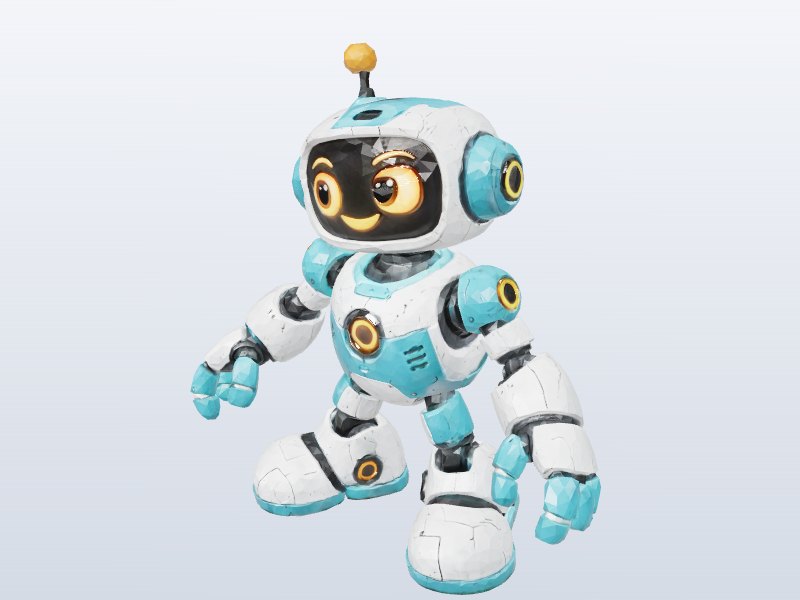
Our Roblox-style blocky characters are rigged and animated, but their skeleton is not Roblox’s official R15 avatar rig. That means they are great as NPCs, statues, shopkeepers and decoration, and the importer can bring in their rig and animations, but they won’t become a playable avatar for players. If you want a true custom avatar, start from Roblox’s own avatar templates and specifications.
How to convert GLB to FBX (if your Studio doesn’t accept GLB)
- Install Blender (free) and open it.
- File → Import → glTF 2.0 and choose the GLB.
- Optional: select the mesh, add a Decimate modifier and lower the ratio until the triangle count (shown in the status bar statistics) fits Roblox’s limit.
- File → Export → FBX. Set Path Mode to Copy and click the embed textures icon next to it so the textures travel inside the file. Enable “Apply Transform”.
- Import the FBX in Roblox Studio as above.
From the Character Creator you can also export OBJ, which Roblox accepts as static geometry. More detail on formats is in GLB vs FBX vs OBJ.
Moderation and good practice
- Uploaded meshes and textures go through Roblox moderation; they may take a moment to appear.
- Reuse the same mesh many times instead of importing duplicates — Roblox instances them efficiently.
- Keep textures around 1024 px; larger images are downscaled anyway.
- You can use our models in experiences that earn Robux, but don’t re-publish them on the Creator Store as free models for others to take.
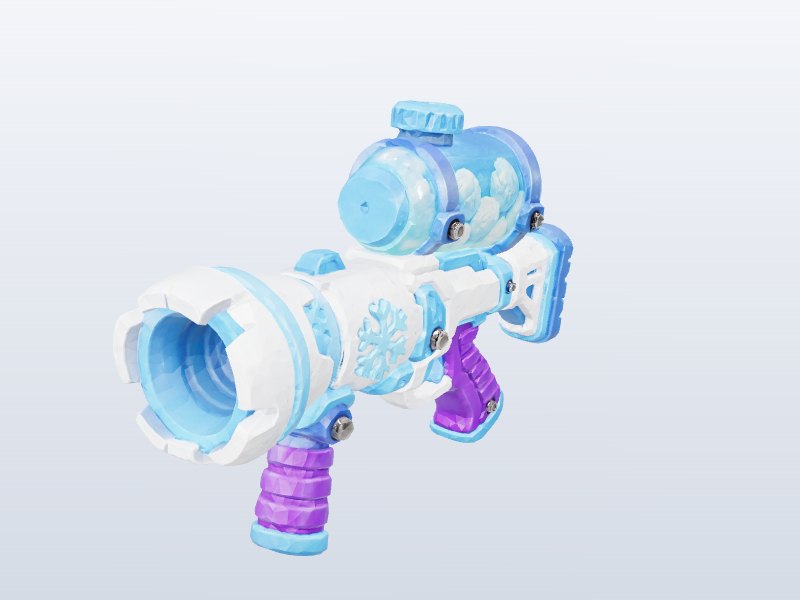
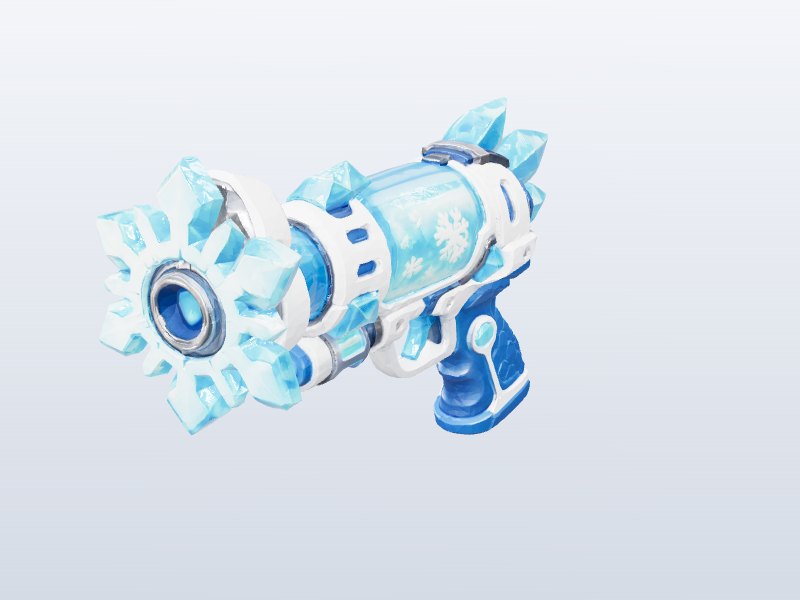
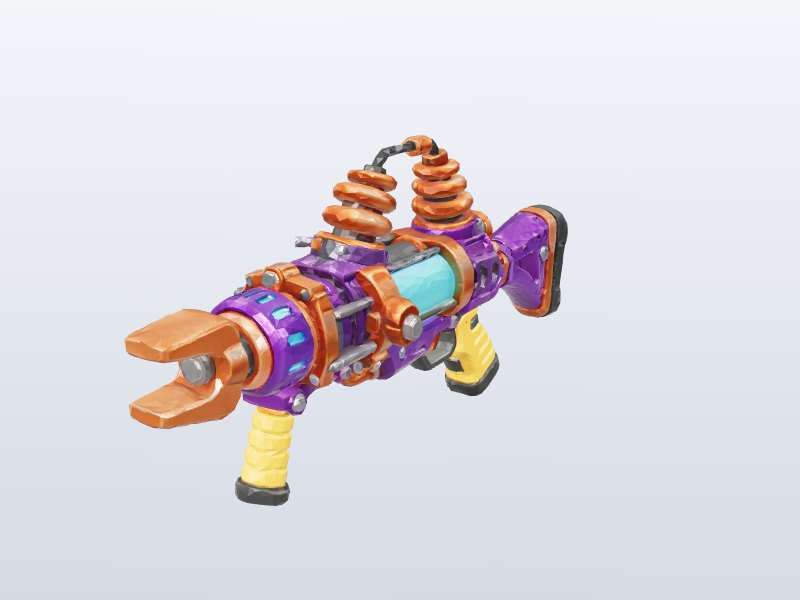
Next, build a world from props, village houses and trees, and arm your NPCs with funny toy guns.
Download 1 model free with your Google account. Want unlimited? Pay just US$1 — once, lifetime, not a subscription. Every new model we add is included forever.