How to make a Roblox-style blocky character (free, no modeling needed)
The blocky avatar look — square head, box torso, rectangular arms and legs — is simple, charming and easy to animate. This guide shows two ways to make your own: the fast way with our free online Character Creator, and the hands-on way building one from cubes in Blender. Then we cover how to bring it into Roblox Studio and other engines. (Roblox is a trademark of Roblox Corporation; Brojek GLB is not affiliated with it. “Roblox-style” here just means the blocky look.)
Option A: the Character Creator (5 minutes)
- Open the free Character Creator in any browser — desktop or phone.
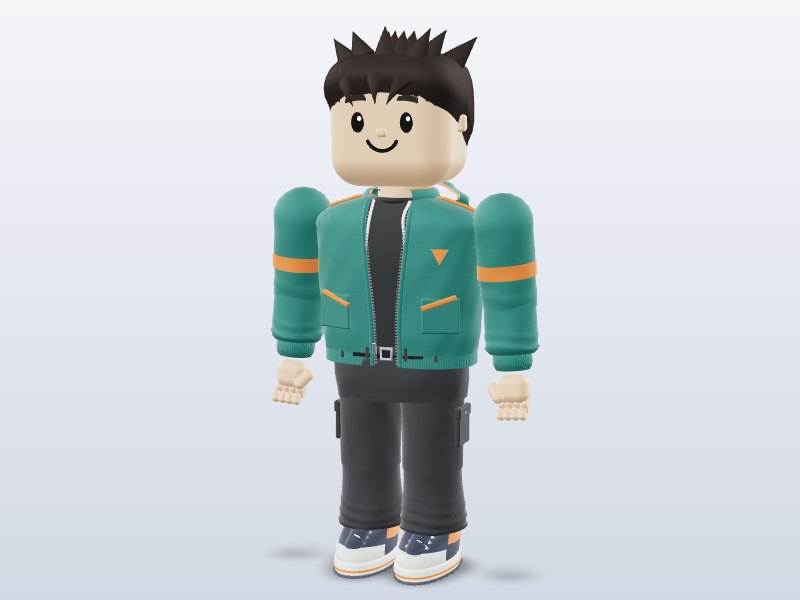
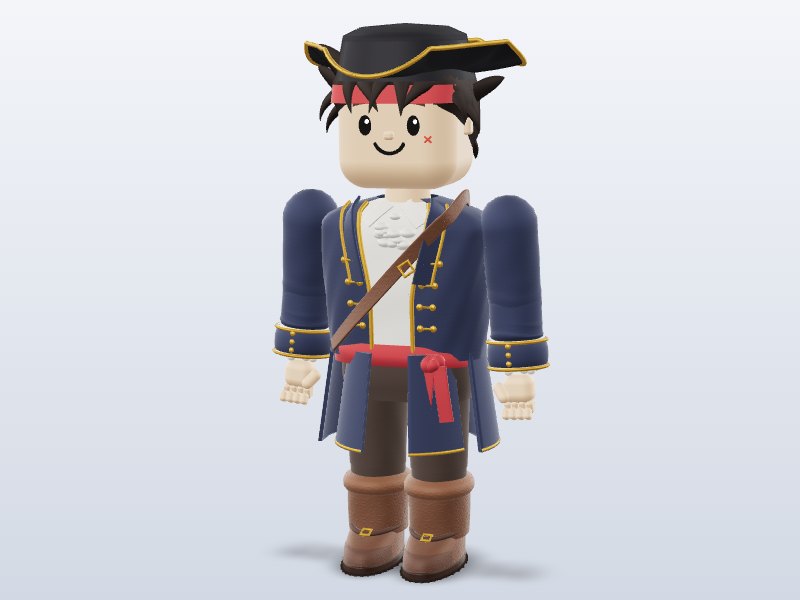
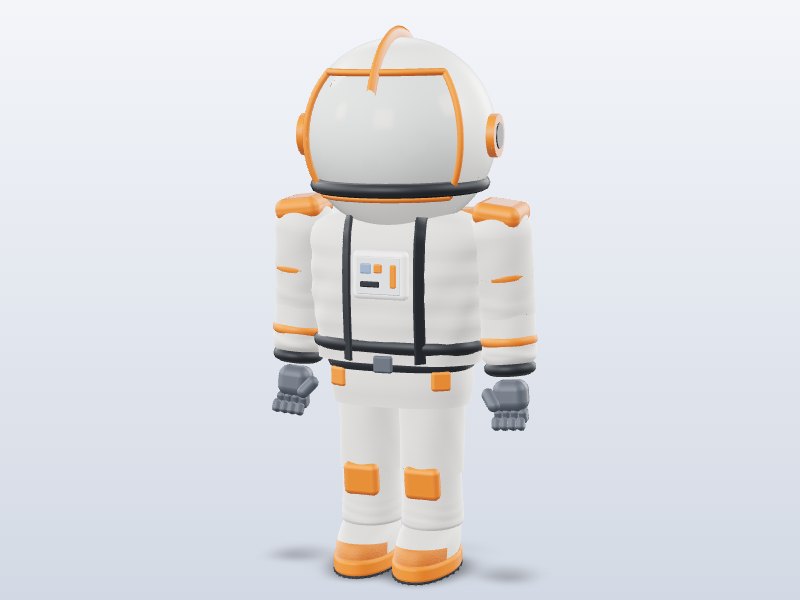
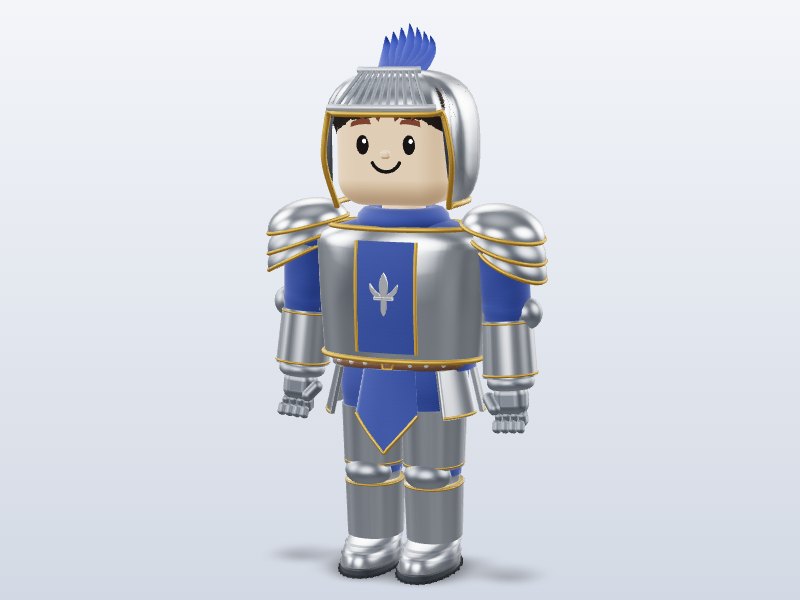
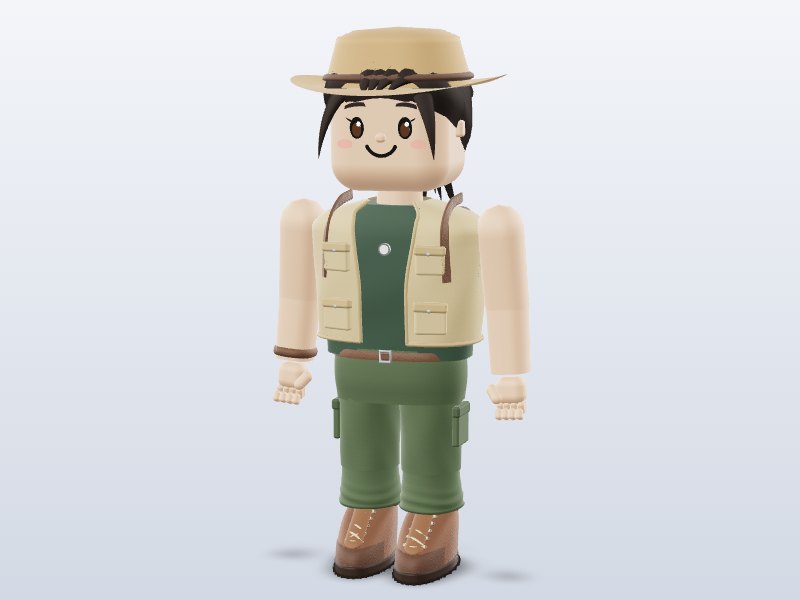
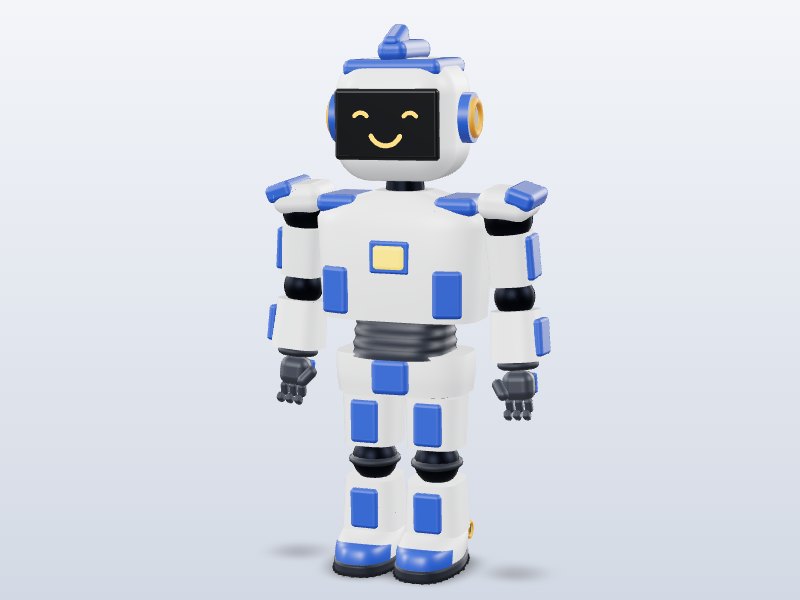
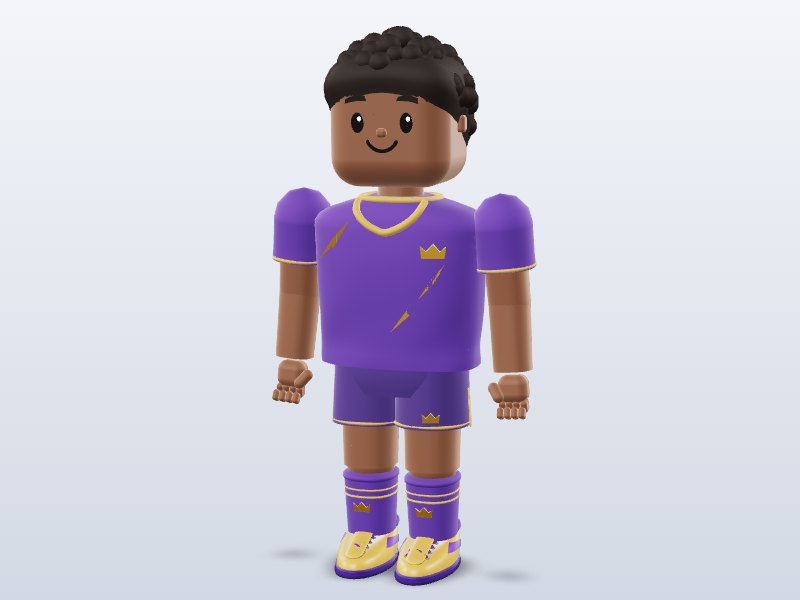
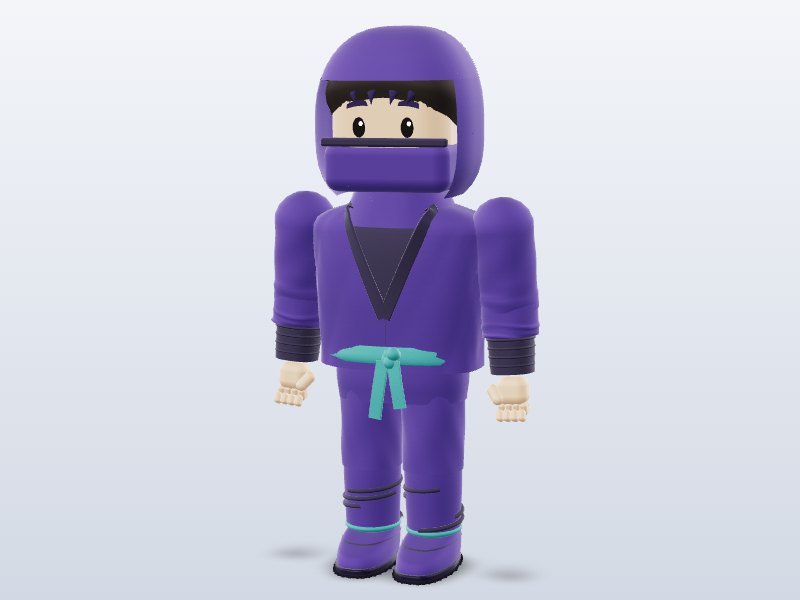
- On the Character tab pick a starting character: hero, pirate, astronaut, knight, explorer, robot, soccer player, ninja, mechanic, viking or alien.
- On the Outfit tab mix heads, tops, pants and shoes from different characters.
- On the Colors tab recolor skin, hair, clothes and accessories; on the Body tab adjust proportions.
- Use the move buttons to preview the nine animations: idle, walk, run, jump, wave, two dances, celebrate and kick.
- Choose a format and press Download my character. GLB keeps the rig and moves (tick “Include the 9 moves”); OBJ is static geometry; STL is for 3D printing; USDZ is for iPhone AR.
Prefer to start from a finished design? Browse the ready-made Roblox-style characters, such as the Blocky Pirate Captain or Blocky Ninja.
Option B: build one from cubes in Blender
If you want to learn the craft, a blocky character is the perfect first model.
- Block out the body. In a new Blender scene, add cubes (Shift+A → Mesh → Cube) and scale them with S. A classic block-avatar proportion is a torso 2 units wide, 2 tall and 1 deep; arms and legs 1 × 2 × 1 each; a head about 1.2 units on every side, sitting on top of the torso. Name each object (Torso, Head, ArmL…).
- Set pivots. For each limb, put the origin at the joint: snap the 3D cursor to the shoulder or hip, then Object → Set Origin → Origin to 3D Cursor. Now rotating a limb swings it naturally.
- Bevel slightly. Add a Bevel modifier with a small width and 2 segments so edges catch the light — it instantly looks more polished.
- Color it. Add a material per part, or UV-unwrap and paint a face texture onto the head’s front.
- Rig it. Add an Armature with bones for torso, head and each limb. Because every part is rigid, the easiest skinning is to parent each mesh part to its bone (select mesh, then Shift-select the armature, enter Pose Mode, select the bone, Ctrl+P → Bone).
- Animate. In Pose Mode, key a few poses on the timeline: for a walk, swing opposite arms and legs about 30° forward and back over 24 frames. Create separate Actions for Idle, Walk and so on.
- Export. File → Export → glTF 2.0 (.glb) with animations enabled. See the Blender guide for export options.
Using your character in Roblox Studio
Recent versions of Roblox Studio’s 3D Importer accept GLB/GLTF; if yours doesn’t, export FBX or OBJ from the Character Creator or Blender. Open File → Import 3D, choose your file and check the preview. Your rig will import as a model you can use for NPCs, statues and cutscenes. Note that a playable avatar must follow Roblox’s own R15 avatar specification, which is a separate, stricter process — start from Roblox’s official avatar templates for that. Full steps are in how to use GLB in Roblox Studio.
Using it in Unity, Godot or the web
- Unity: import with glTFast and use the clips in an Animator — Unity guide.
- Godot 4: drop the GLB in, set Idle/Walk to loop, and use the AnimationPlayer — Godot guide.
- three.js: load with GLTFLoader and play clips with AnimationMixer — three.js guide.
Design tips for blocky characters
- Silhouette first: hats, hair, backpacks and helmets make block characters recognizable at a distance.
- Use 3–4 strong colors per character; avoid tiny details that disappear at game resolution.
- Keep proportions consistent across your cast so animations can be shared.
- Give the face personality with simple shapes — two eyes and a mouth on the head’s front go a long way.
Need weapons or props for your new hero? Add toy guns, props and a castle to explore.
Download 1 model free with your Google account. Want unlimited? Pay just US$1 — once, lifetime, not a subscription. Every new model we add is included forever.